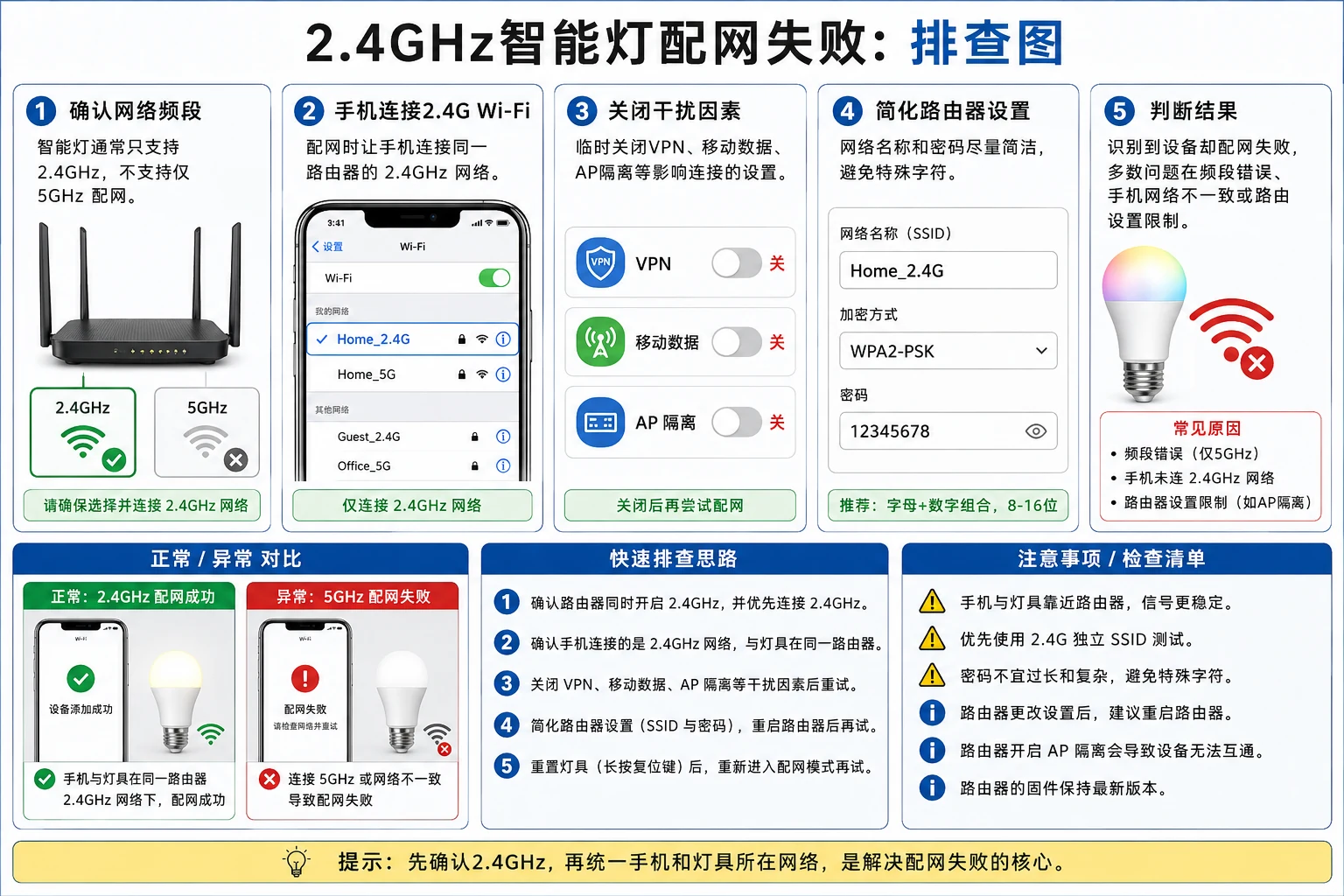
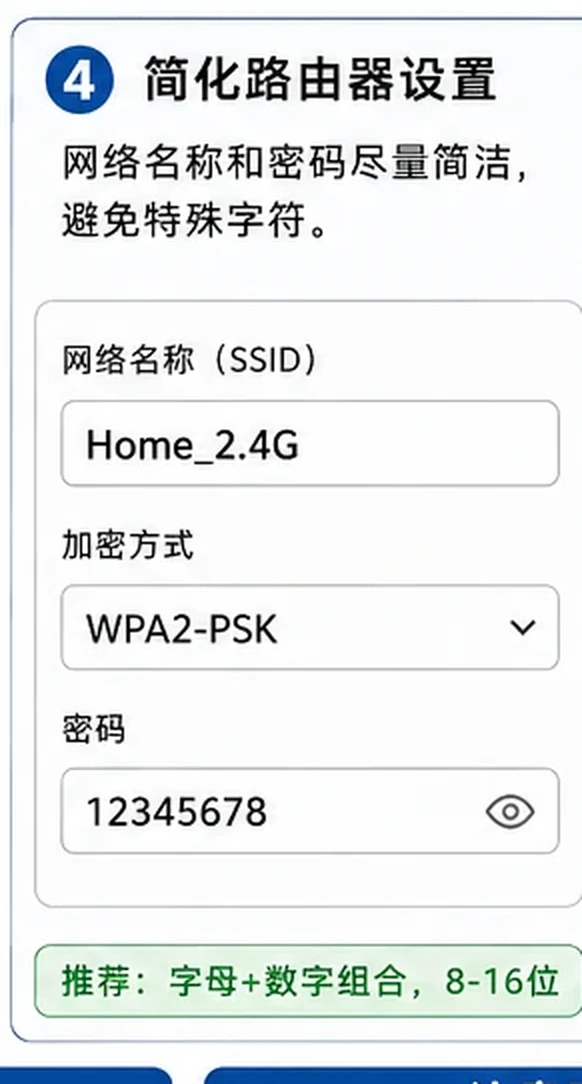
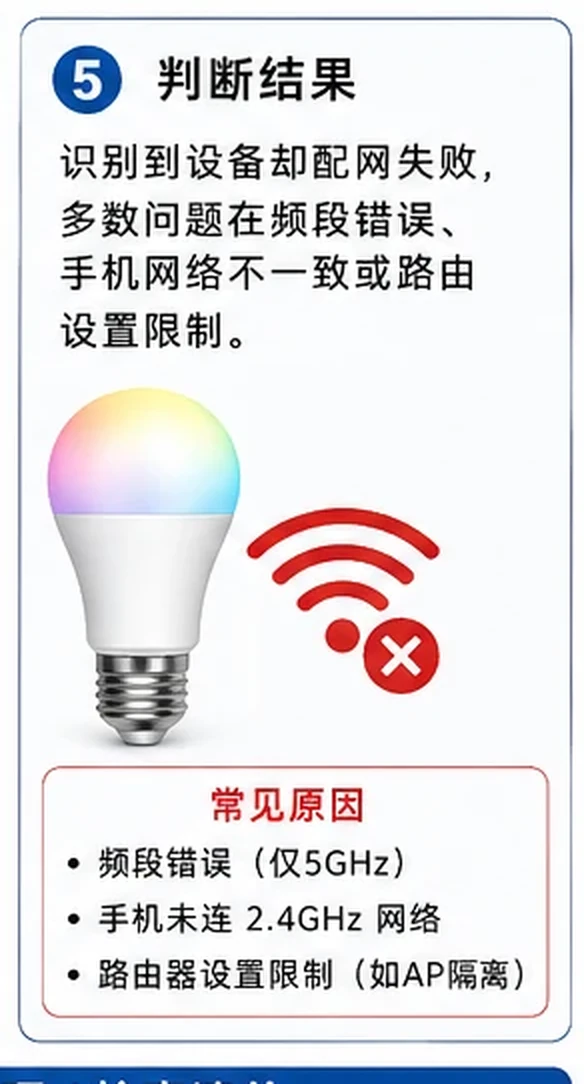
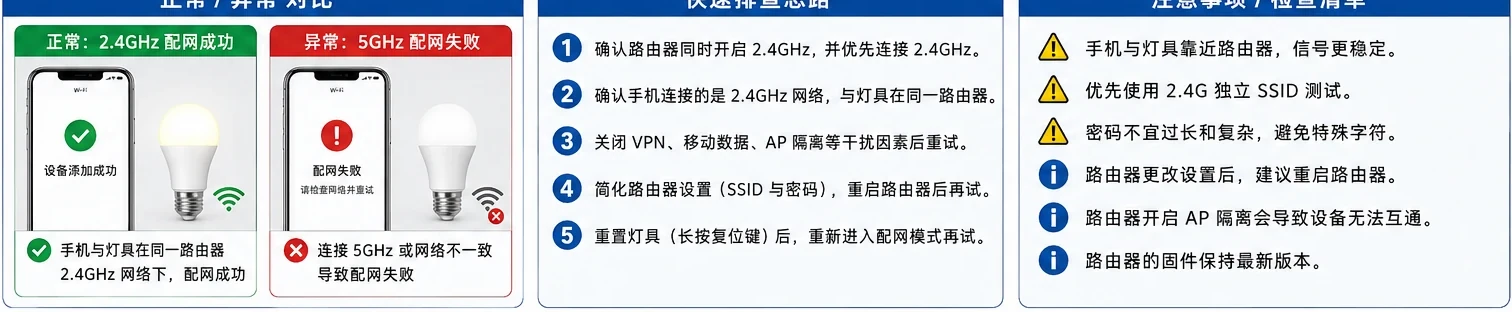
FAULT OVERVIEWUnderstand the symptom before replacing parts
A step-by-step troubleshooting guide that checks power, wiring, settings, and the affected component before parts are replaced.
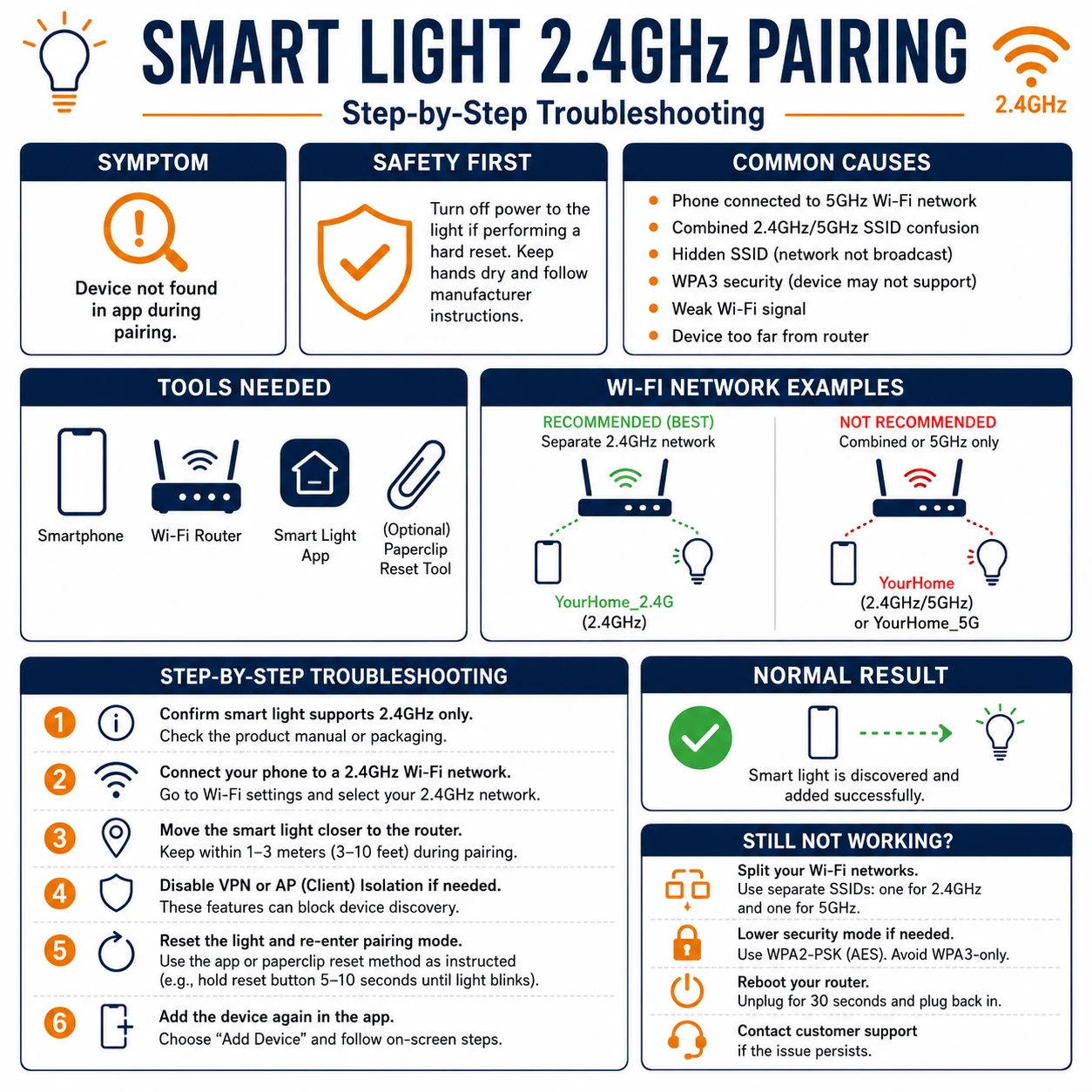 English tutorial overview Complete English infographic with the six diagnostic or repair steps shown below.
TOOLSPrepare before testing
- Phone
- Router administration access
- Suitable inspection tool
- Suitable inspection tool
!Safety noteUse the product label and wiring diagram as the final authority.
COMMON CAUSESCheck these areas first
- Power or voltage mismatch
- Loose, reversed, or damaged connection
- Controller, driver, or component failure
- Incorrect setting or incompatible device
STEP BY STEPDiagnostic procedure
Follow the sequence and change only one condition at a time.
01
Confirm power and device status
Make sure the light or controller is powered and the status indicator matches the product manual.
 Step 01: Confirm power and device status — Cropped directly from this tutorial’s English main infographic.
What to observeRecord the reading or behavior before changing the next variable.
02
Check phone and app permissions
Enable Bluetooth, local-network, nearby-device, microphone, or location permissions required by the feature.
 Step 02: Check phone and app permissions — Cropped directly from this tutorial’s English main infographic.
What to observeRecord the reading or behavior before changing the next variable.
03
Verify the correct network or connection method
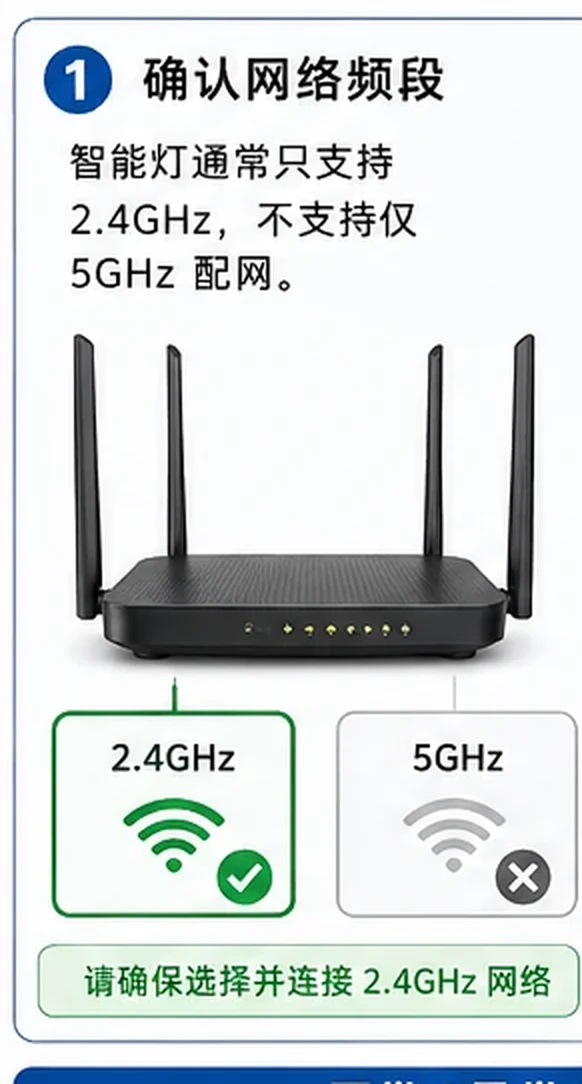
Use 2.4 GHz Wi-Fi when required and connect from inside the app rather than the phone system settings.
 Step 03: Verify the correct network or connection method — Cropped directly from this tutorial’s English main infographic.
What to observeRecord the reading or behavior before changing the next variable.
04
Restart the light, controller, phone, and router
Power-cycle one component at a time and wait for it to reconnect before continuing.
 Step 04: Restart the light, controller, phone, and router — Cropped directly from this tutorial’s English main infographic.
What to observeRecord the reading or behavior before changing the next variable.
05
Remove stale pairing information
Delete the device from the app or Bluetooth list and add it again using the documented reset sequence.
 Step 05: Remove stale pairing information — Cropped directly from this tutorial’s English main infographic.
What to observeRecord the reading or behavior before changing the next variable.
06
Test at close range with a second phone if available
A successful test with another phone helps separate device faults from account, app, or phone problems.
 Step 06: Test at close range with a second phone if available — Cropped directly from this tutorial’s English main infographic.
What to observeRecord the reading or behavior before changing the next variable.
Expected result
The fault is isolated to a power source, connection, setting, controller, driver, or light section.
If the fault remains
Stop if there is overheating, odor, damaged insulation, repeated fuse failure, or exposed mains voltage.