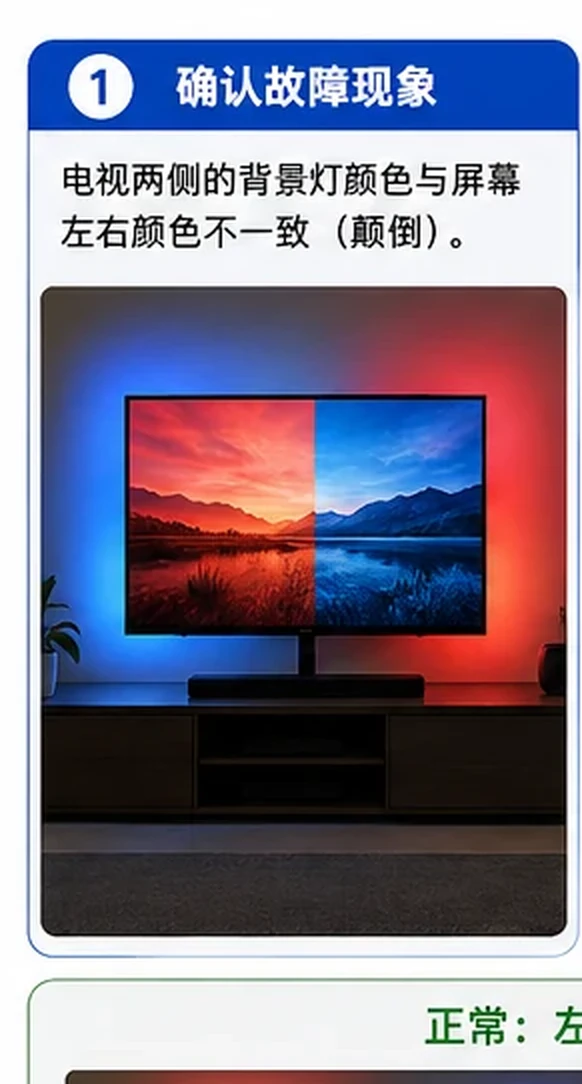
FAULT OVERVIEWUnderstand the symptom before replacing parts
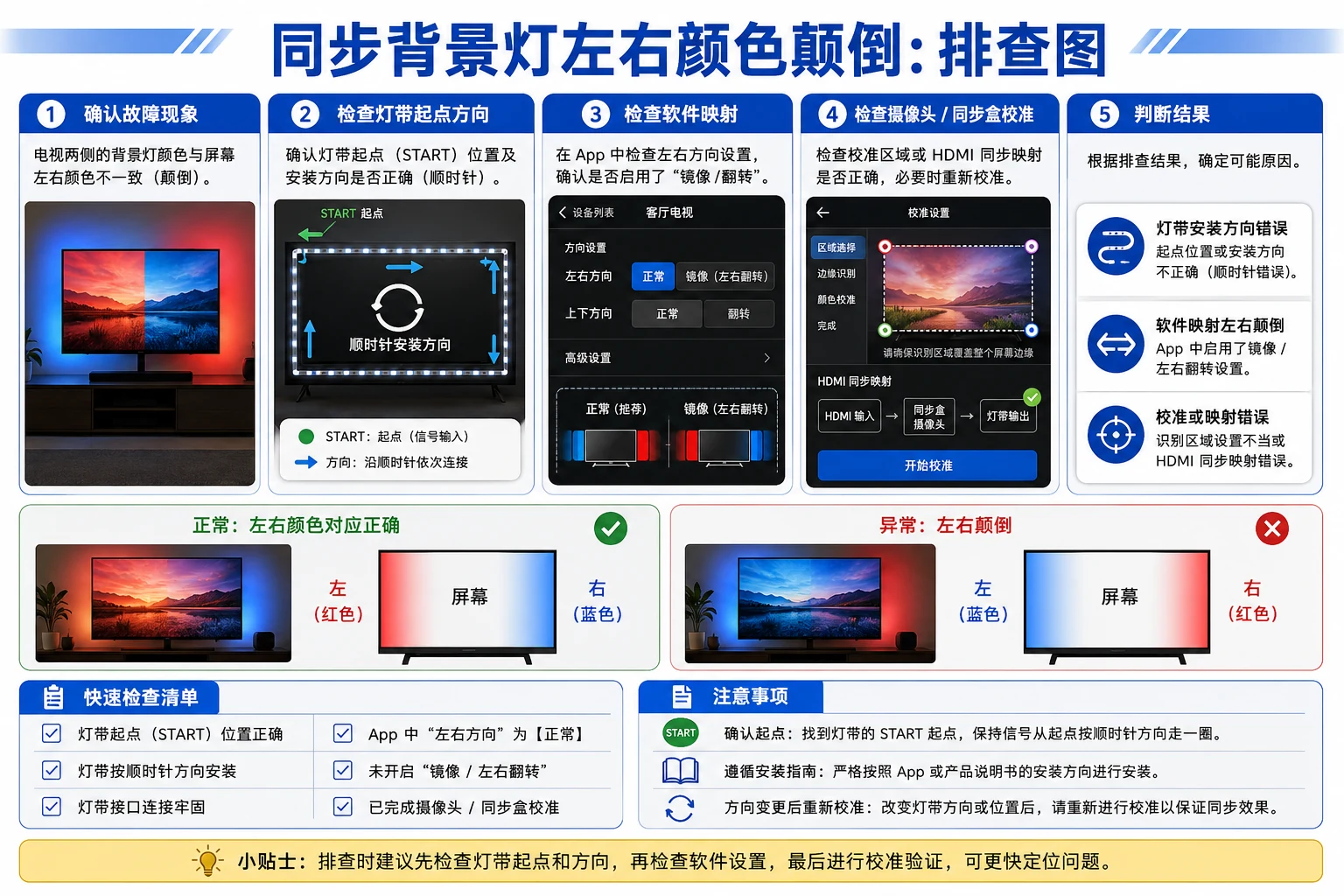
A step-by-step troubleshooting guide that checks power, wiring, settings, and the affected component before parts are replaced.
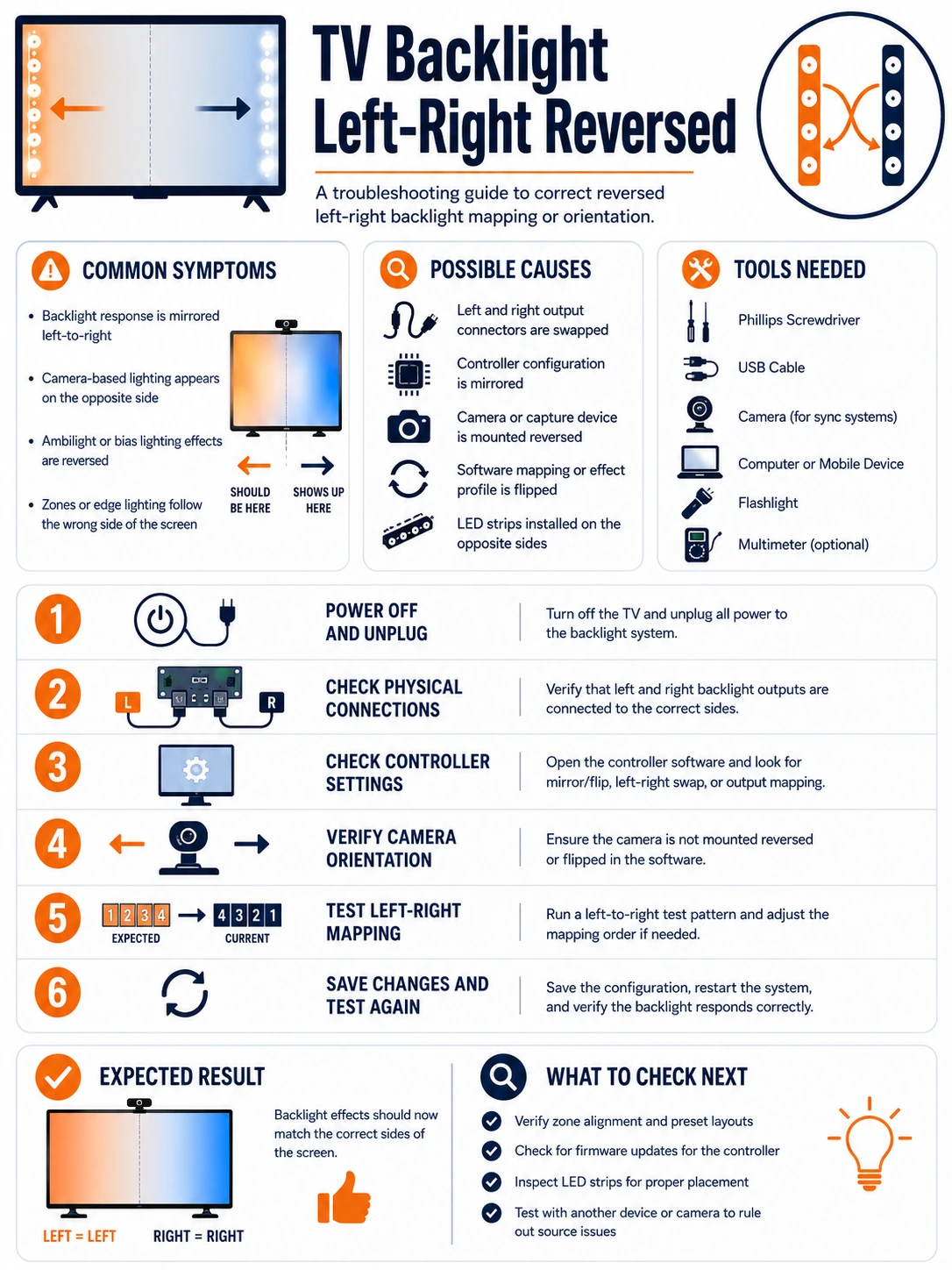 English tutorial overview Complete English infographic with the six diagnostic or repair steps shown below.
TOOLSPrepare before testing
- Phone
- Suitable inspection tool
- Suitable inspection tool
!Safety noteUse the product label and wiring diagram as the final authority.
COMMON CAUSESCheck these areas first
- Power or voltage mismatch
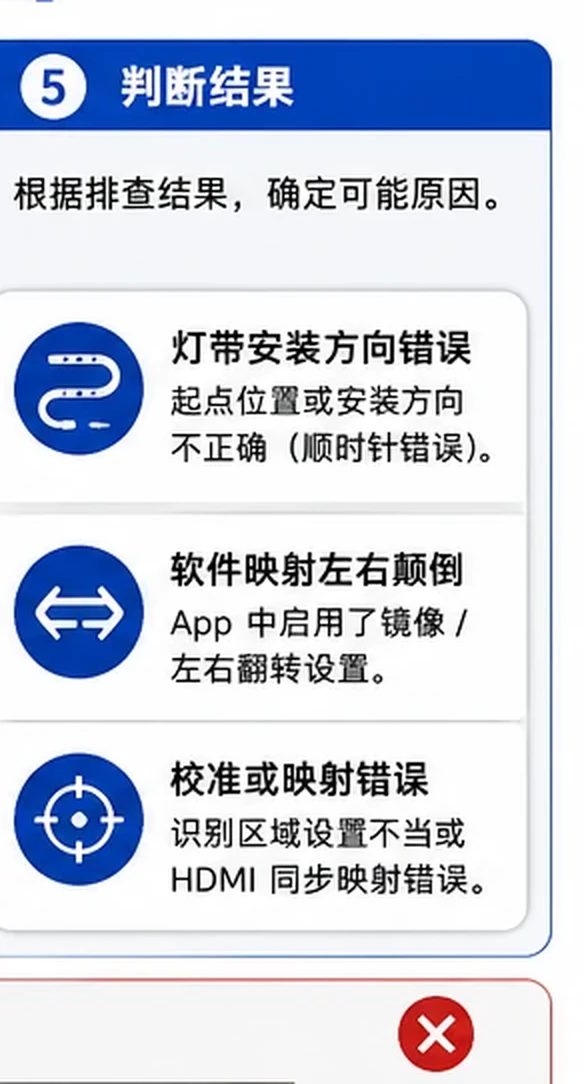
- Loose, reversed, or damaged connection
- Controller, driver, or component failure
- Incorrect setting or incompatible device
STEP BY STEPDiagnostic procedure
Follow the sequence and change only one condition at a time.
01
Build the shortest working signal chain
Connect one source, one known-good HDMI cable, the sync device, and the TV.
 Step 01: Build the shortest working signal chain — Cropped directly from this tutorial’s English main infographic.
What to observeRecord the reading or behavior before changing the next variable.
02
Confirm the input and output ports
Check that the source is connected to an input and the television to the correct output.
 Step 02: Confirm the input and output ports — Cropped directly from this tutorial’s English main infographic.
What to observeRecord the reading or behavior before changing the next variable.
03
Reduce the video format temporarily
Test 1080p SDR or a lower refresh rate to identify bandwidth, HDR, or HDCP compatibility problems.
 Step 03: Reduce the video format temporarily — Cropped directly from this tutorial’s English main infographic.
What to observeRecord the reading or behavior before changing the next variable.
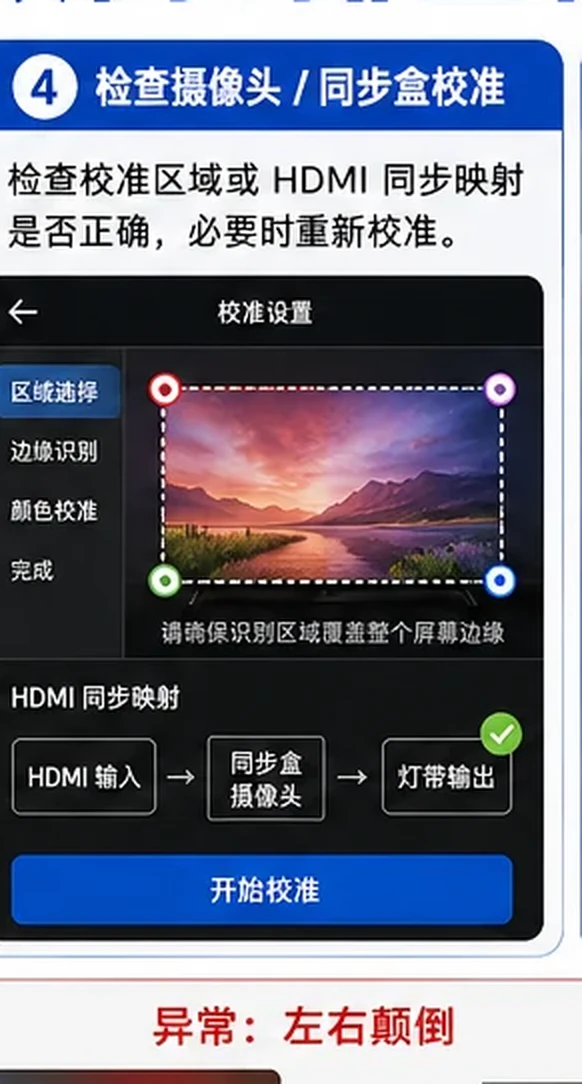
04
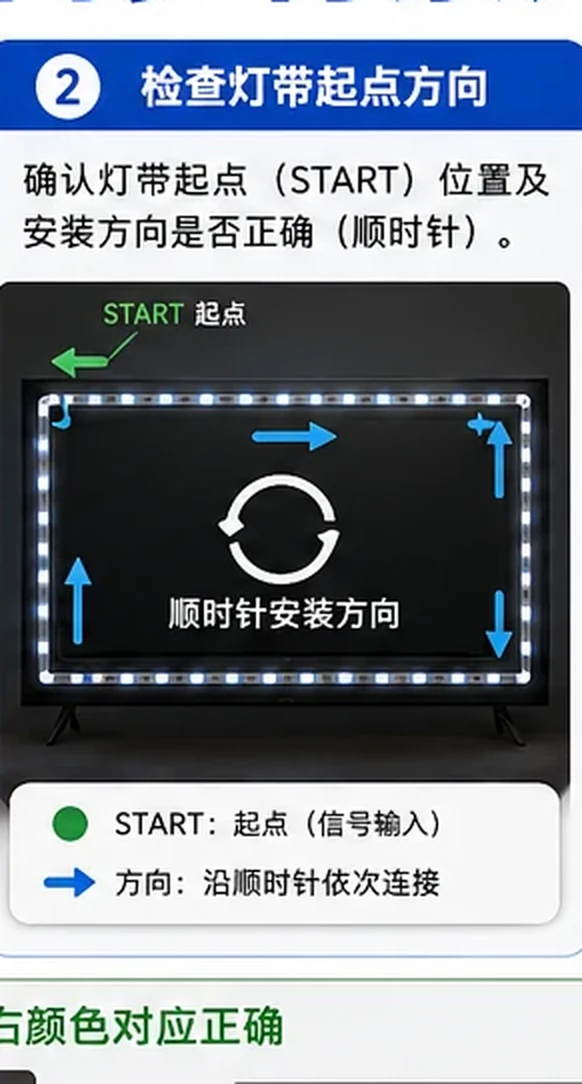
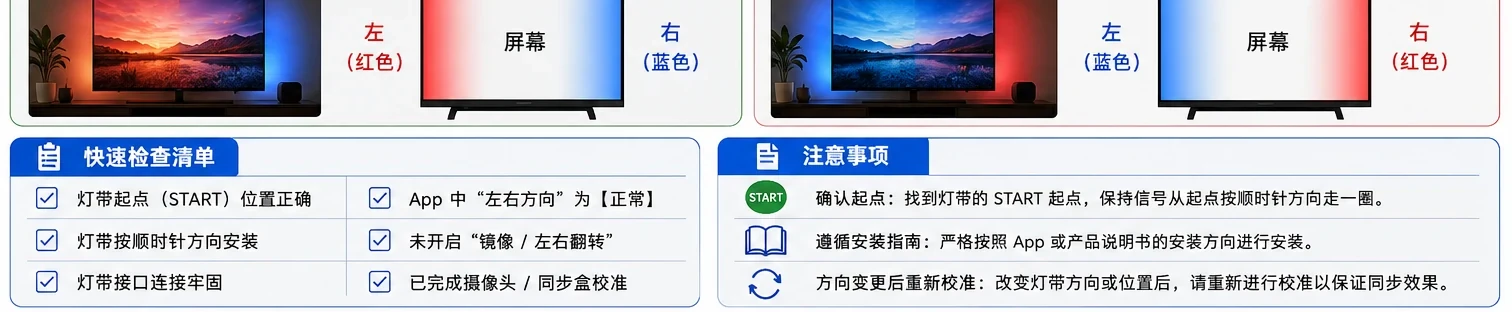
Recalibrate the screen boundaries or strip direction
Set the correct starting corner, clockwise direction, camera frame, and screen zones.
 Step 04: Recalibrate the screen boundaries or strip direction — Cropped directly from this tutorial’s English main infographic.
What to observeRecord the reading or behavior before changing the next variable.
05
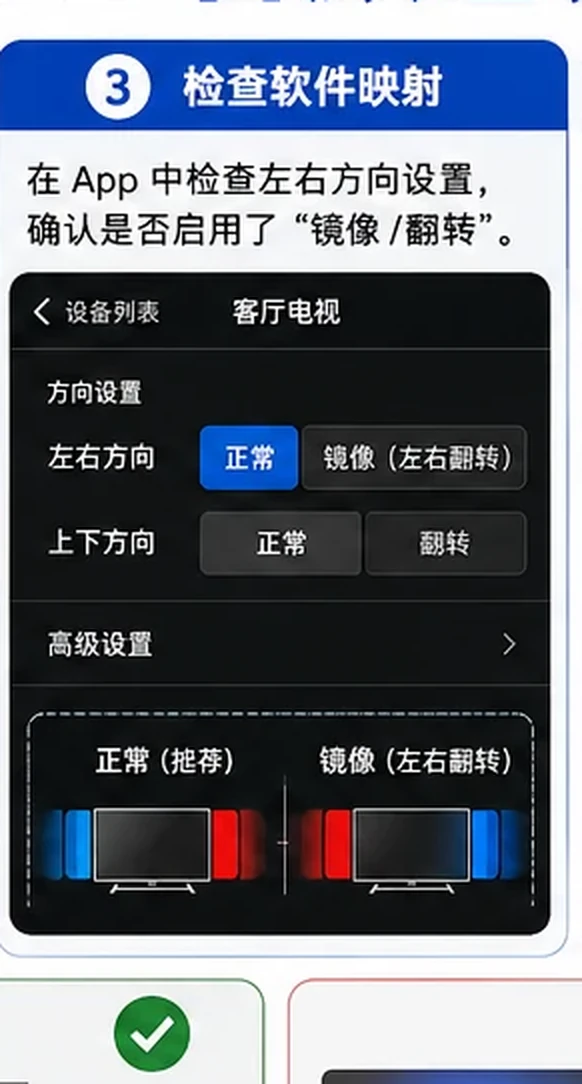
Update firmware and app settings
Install current firmware and review color order, latency, and image-processing options.
 Step 05: Update firmware and app settings — Cropped directly from this tutorial’s English main infographic.
What to observeRecord the reading or behavior before changing the next variable.
06
Restore features one at a time
Re-enable 4K, HDR, high refresh rate, or advanced color modes individually and retest.
 Step 06: Restore features one at a time — Cropped directly from this tutorial’s English main infographic.
What to observeRecord the reading or behavior before changing the next variable.
Expected result
The fault is isolated to a power source, connection, setting, controller, driver, or light section.
If the fault remains
Stop if there is overheating, odor, damaged insulation, repeated fuse failure, or exposed mains voltage.