
Know how your kit sees the picture
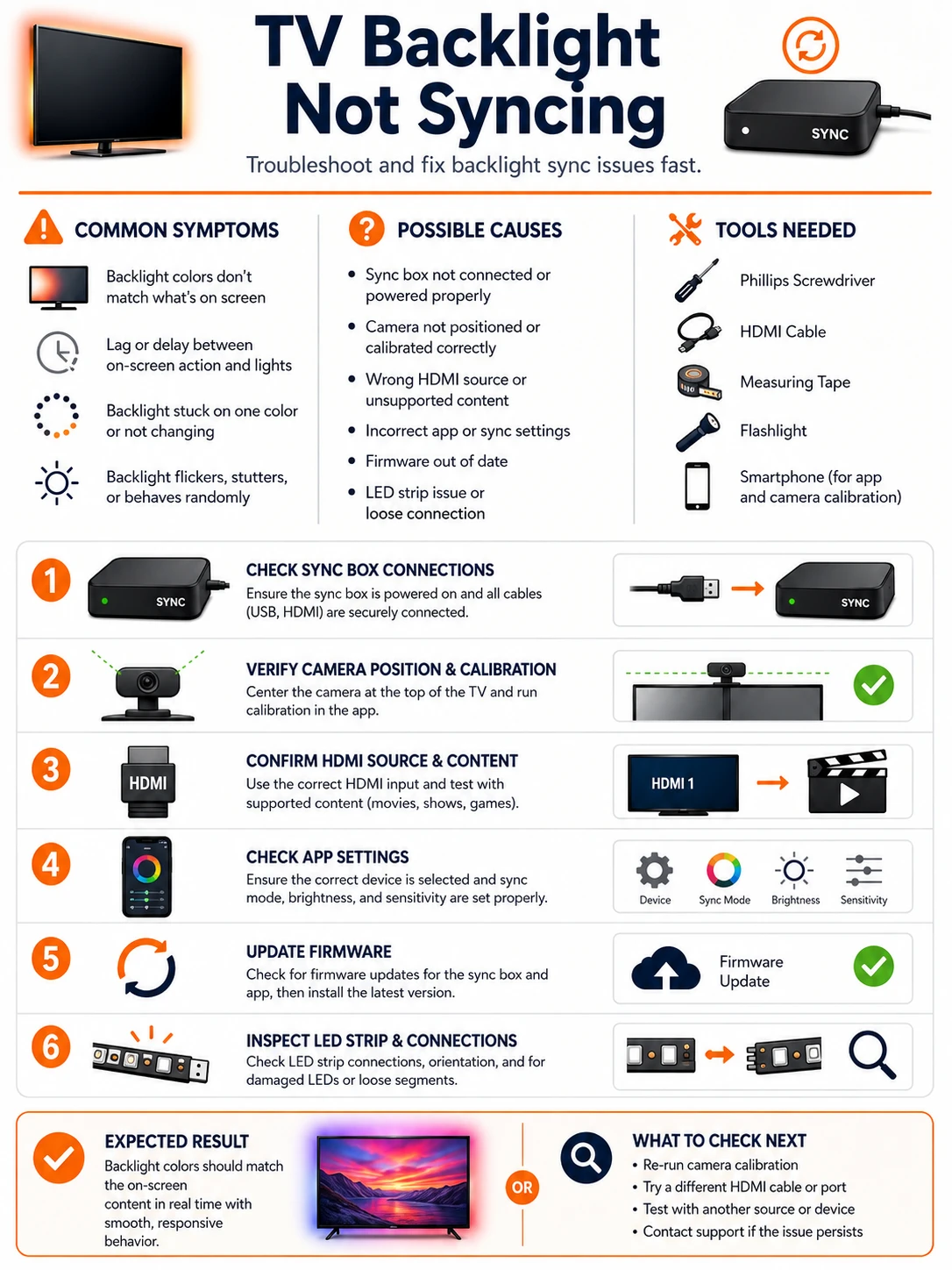
Three sync architectures dominate. Camera kits clip a small camera above or below the screen and read the visible picture — cheap, source-agnostic, and dependent on calibration and room light. HDMI sync boxes sit in the signal path and read the video digitally — fast and accurate, but sensitive to formats and handshakes. App-scene kits do not sync at all; they play canned moods, and expecting them to follow the movie is a specification misunderstanding, not a fault.
The mapping layer is the other half: the controller must know where the strip starts, which way it runs, and how many LEDs sit on each side. Wrong answers there produce the classic geometric faults — colors on the wrong side, effects running backwards, one edge dead — which look dramatic and fix in minutes once the mapping screen is open.
Prepare before testing
- Microfiber cloth — a hazed camera lens is the leading cause of washed-out sync colors
- The kit's app, on the mapping/calibration screens — every geometric fault is fixed there, not at the strip
- Static test images — full-screen pure red, green, blue — searchable on any streaming box or USB stick
- Painter's tape — temporary corner markers while recalibrating a camera kit
Nothing hazardous here; the care items are the TV's screen (no solvents near the camera mount) and the strip's adhesive if remounting becomes necessary.
Check these areas first
- Camera miscalibrated or moved. a nudged mount or a slipped corner marker shifts every zone it reads
- Room light polluting the camera. window glare and lamp reflections dilute or tint the sampled colors
- HDMI box out of the signal path or out of format. sources plugged straight into the TV, or 4K/HDR modes the box mishandles
- Strip mapping wrong. start corner, direction or per-side LED counts set incorrectly — the mirrored-sides fault lives here
- Genuine processing lag. camera kits trail fast scenes by nature; expectations belong in the verdict
Diagnostic procedure
Name the sync method, then calibrate what reads the screen, then fix the map from screen zones to strip zones, and verify with static test colors.
Identify the sync architecture
Determine which of the three families your kit belongs to: a visible camera unit (camera sync), an HDMI-in/HDMI-out box (signal sync), or neither (app scenes only). The kit's box, app screens or the presence of an HDMI pass-through settles it. Every following step branches on this answer.

Recalibrate the camera against the screen
Camera kits: clean the lens, confirm the mount sees the entire panel without obstruction, then run the app's calibration — marking the four corners and edges as prompted, ideally in a dim room with a bright static picture. A camera that moved even a centimeter since install reads zones from the wrong places until this is redone.

Tame the room's light during viewing
Strong window light, mirror-fronted furniture and colored wall washes all leak into the camera's view and dilute or tint the sync. Test after dark with lamps off to establish the kit's true capability, then arrange viewing light so it stays out of the camera's sightline — behind the sofa rather than beside the screen.

Verify the HDMI chain and format
Box kits: confirm sources actually route through the box (source → box IN, box OUT → TV) and that the app has the right input selected. If the picture syncs on some content but not others, drop the source temporarily to 1080p/60 SDR: formats the box cannot parse (some 4K, HDR or high-refresh modes) silently break sampling, and stepping formats back up finds the ceiling.

Fix the strip map — start, direction, counts
In the app's layout screen, set where the strip begins (usually bottom-left or bottom-right by convention), its direction of travel (clockwise or counter-clockwise viewed from the front), and the LED count per side. Mirrored left/right or bottom-for-top faults are exactly these settings inverted; effects running backwards is the direction flag alone.

Judge with static test colors
Display full-screen pure red, then green, then blue: every zone should match. Then a quadrant test image: each corner's glow should sit behind its own corner. Color errors on static frames are sampling or mapping faults (previous steps); clean statics with lag only on motion is the architecture's honest speed limit.

The mirror fault, dissected
Left glowing for right is the most reported mapping fault and has exactly three causes, testable in order. First the app's start-corner and direction settings — the fix for ninety percent of cases, no ladder required. Second, a strip physically installed opposite to the app's assumption: if the install ran counter-clockwise where the app defaults clockwise, either flip the app's direction flag or accept mirrored effects forever. Third, on kits with per-side segments plugged into a distribution block, two side leads swapped at the block — trace the bottom-left lead to its socket and compare against the block's labels. One static quadrant image identifies which of the three you have: rotated glow means direction, mirrored means start corner or swapped leads.
What recalibration cannot buy
A camera kit samples the panel through glass, room air and its own tiny sensor: expect a beat of lag on fast cuts, muted colors on dim scenes, and confusion when subtitles or letterbox bars dominate its view. Those are properties, not faults — the cure for each is the HDMI-box architecture, which reads the signal before the panel draws it. The upgrade question is simply whether the lag annoys more than the box's cost; recalibrating a camera kit weekly in pursuit of box-grade sync is effort spent against physics.